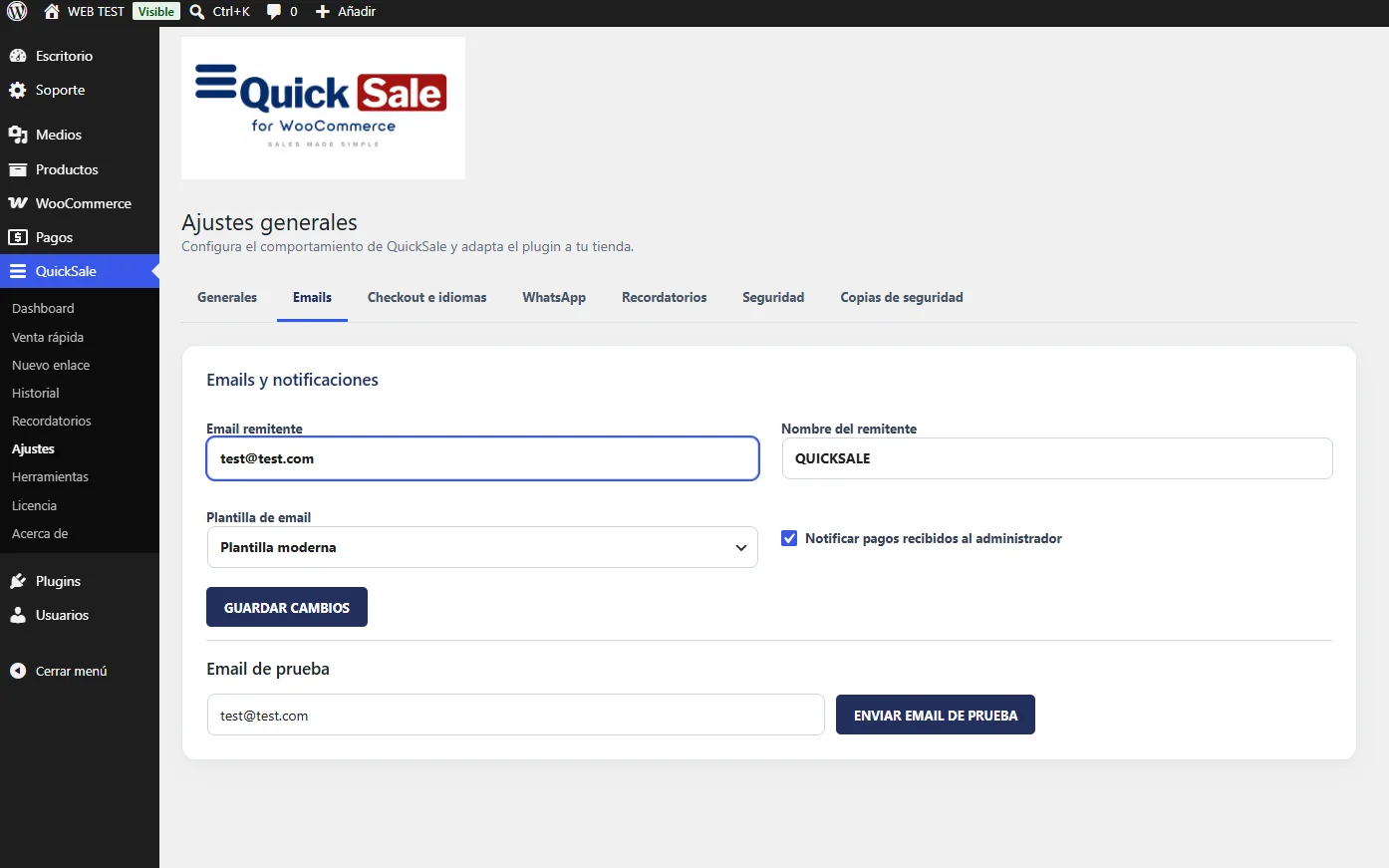
Go to QuickSale → Settings → Emails. Enter the Sender email and Sender name. Choose Modern or Simple email template and optionally enable administrator payment notifications.
Real QuickSale screenshot
02
Save and test
Click Save changes. Under Test email, enter a recipient address and click Send test email. The confirmation means the message was accepted for sending, not necessarily delivered to the inbox.
03
Improve deliverability
Configure authenticated SMTP or a transactional email provider for WordPress, and verify SPF, DKIM and DMARC for your sending domain.
04
Send a payment request
Create a payment link, select email delivery and check the recipient details. Review QuickSale History or activity after sending.
05
Confirm payment
Complete a test payment in WooCommerce and check whether the expected completed-payment notifications were generated. Inspect mail logs if delivery fails.