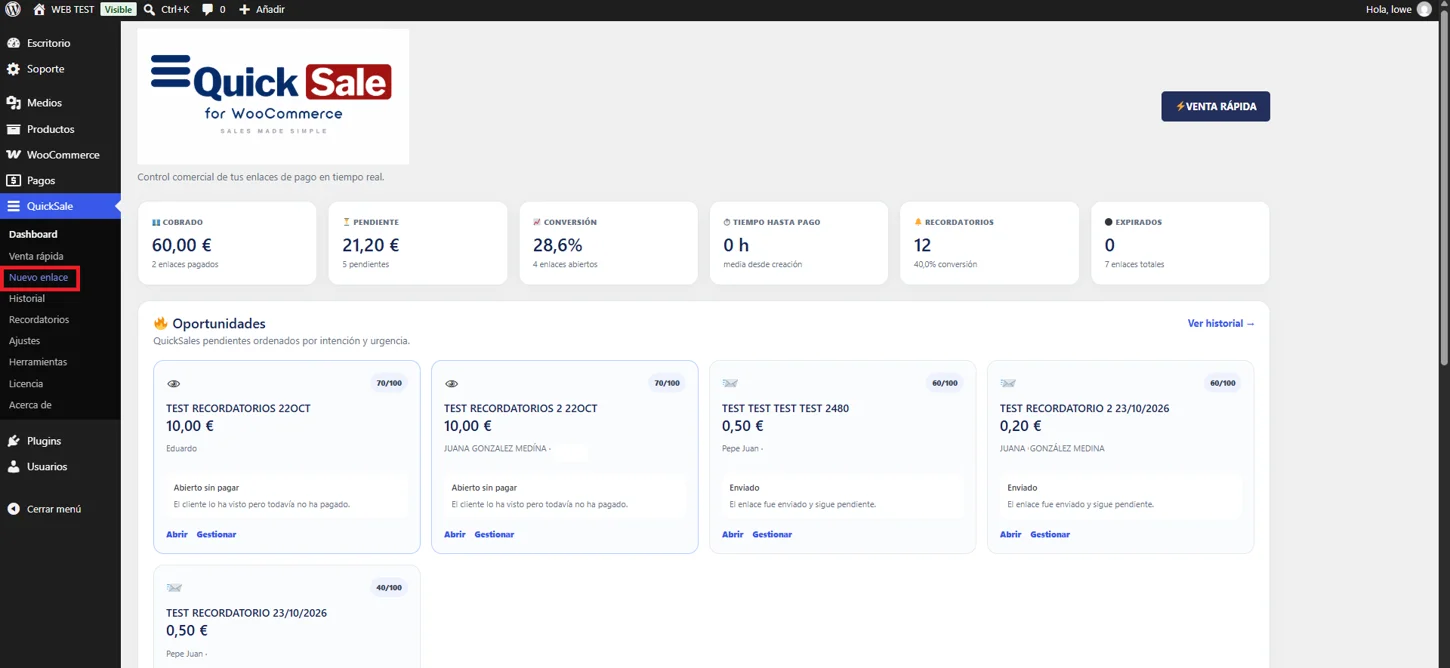
Open QuickSale → New payment link for a standard request, or Quick Sale for the streamlined customer/product/quantity flow.
Real QuickSale screenshot
02
Select items or an amount
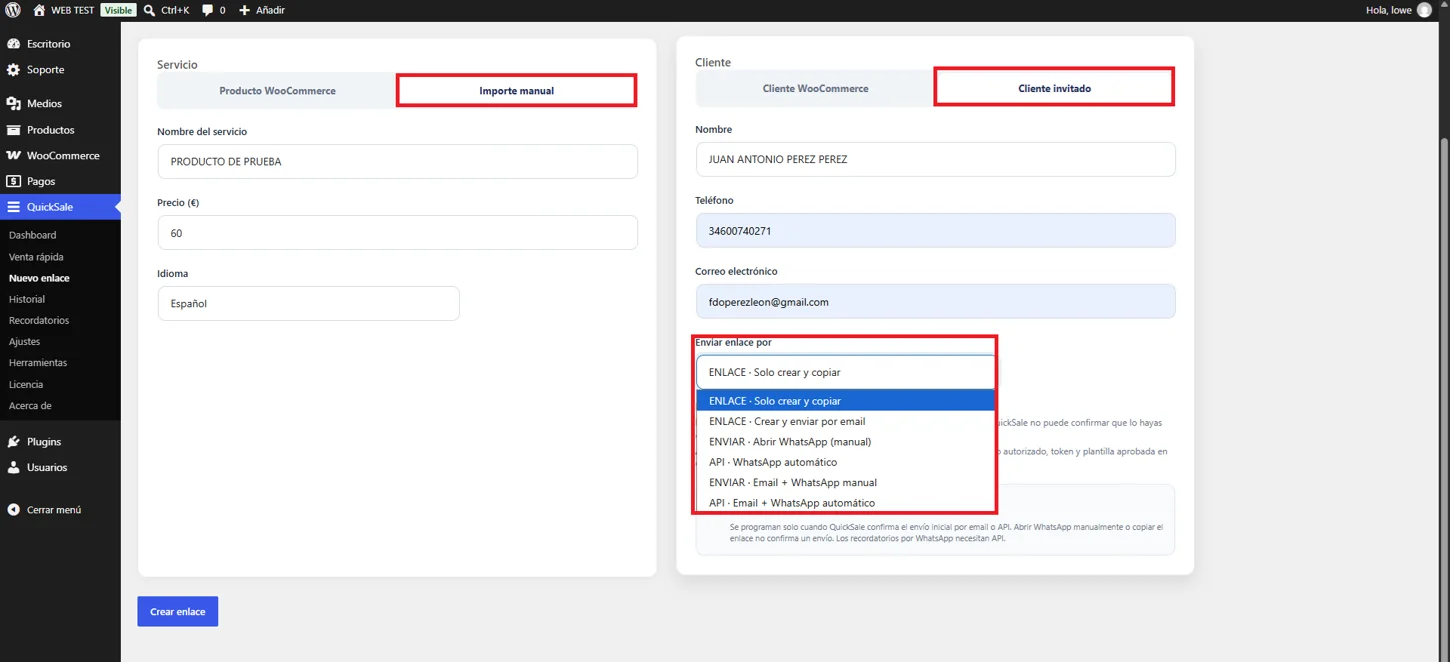
In New payment link, choose WooCommerce products and quantities. The interface supports multiple items; use the manual amount option where available. Quick Sale has a simplified form.
Real QuickSale screenshot
03
Enter the customer
Choose an existing customer or fill in the recipient details shown on screen. Check the email address and phone number before sending.
04
Set delivery and reminders
Select the available email or WhatsApp delivery method. Enable reminders if appropriate and confirm the message language and payment details.
05
Create and verify
Click Create link or Generate and send according to the workflow. Copy/open the resulting payment URL, complete a test checkout and check the order in WooCommerce.