Confirm WooCommerce is active and its checkout can accept a test order. Make a backup and test the plugin on staging first.
02
Install QuickSale
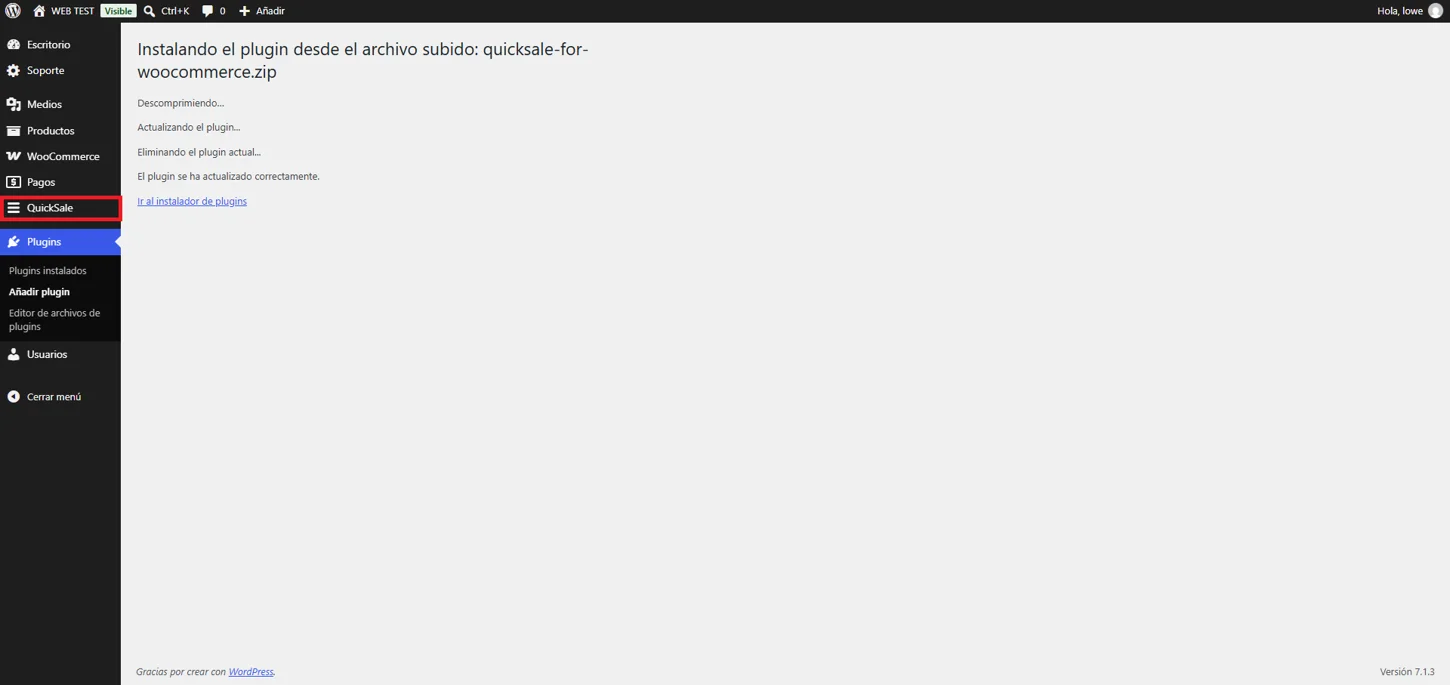
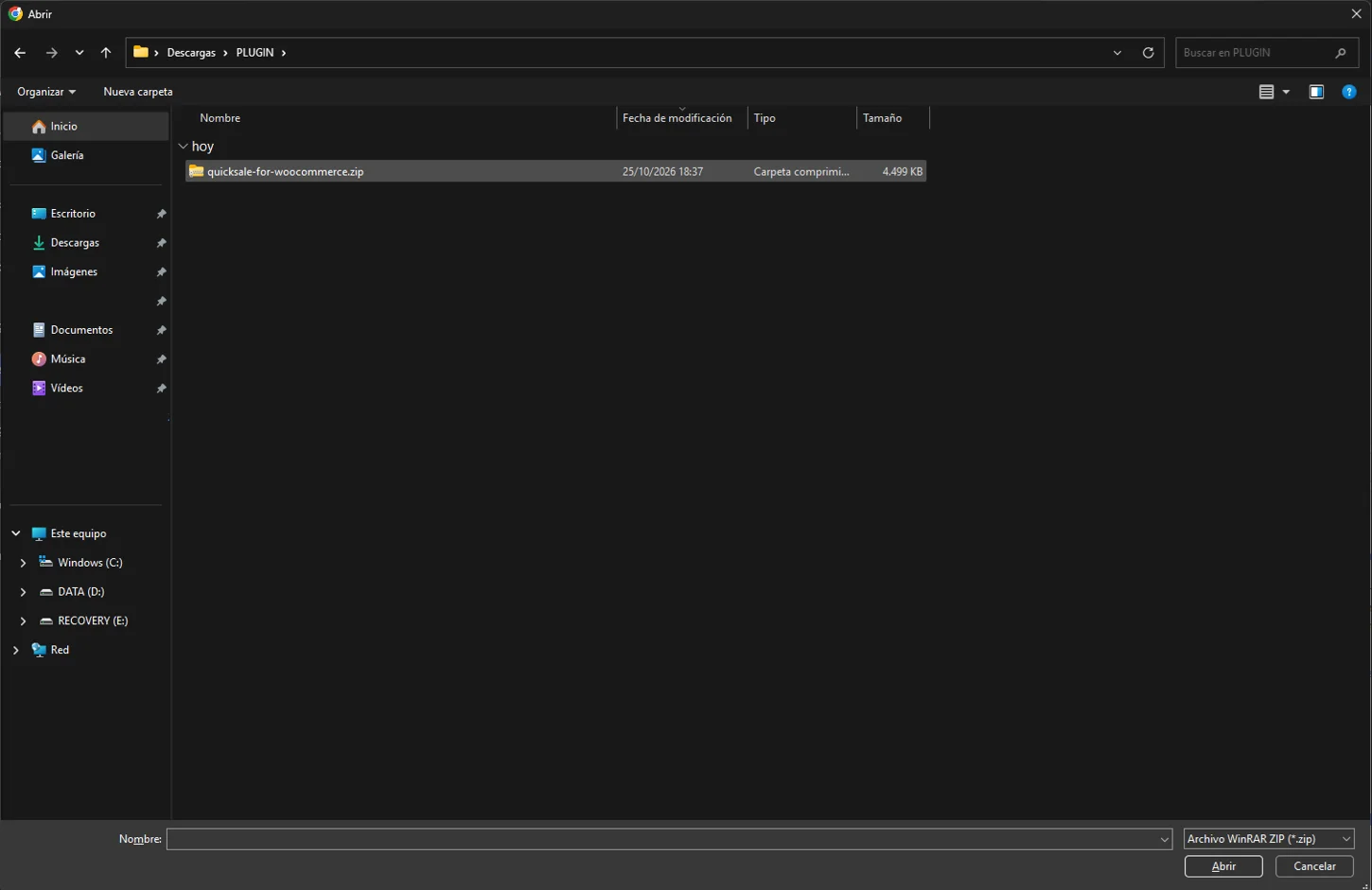
In WordPress go to Plugins → Add New → Upload Plugin. Select the official quicksale-for-woocommerce ZIP, click Install Now and Activate.
Real QuickSale screenshot
Real QuickSale screenshot
03
Explore the admin menu
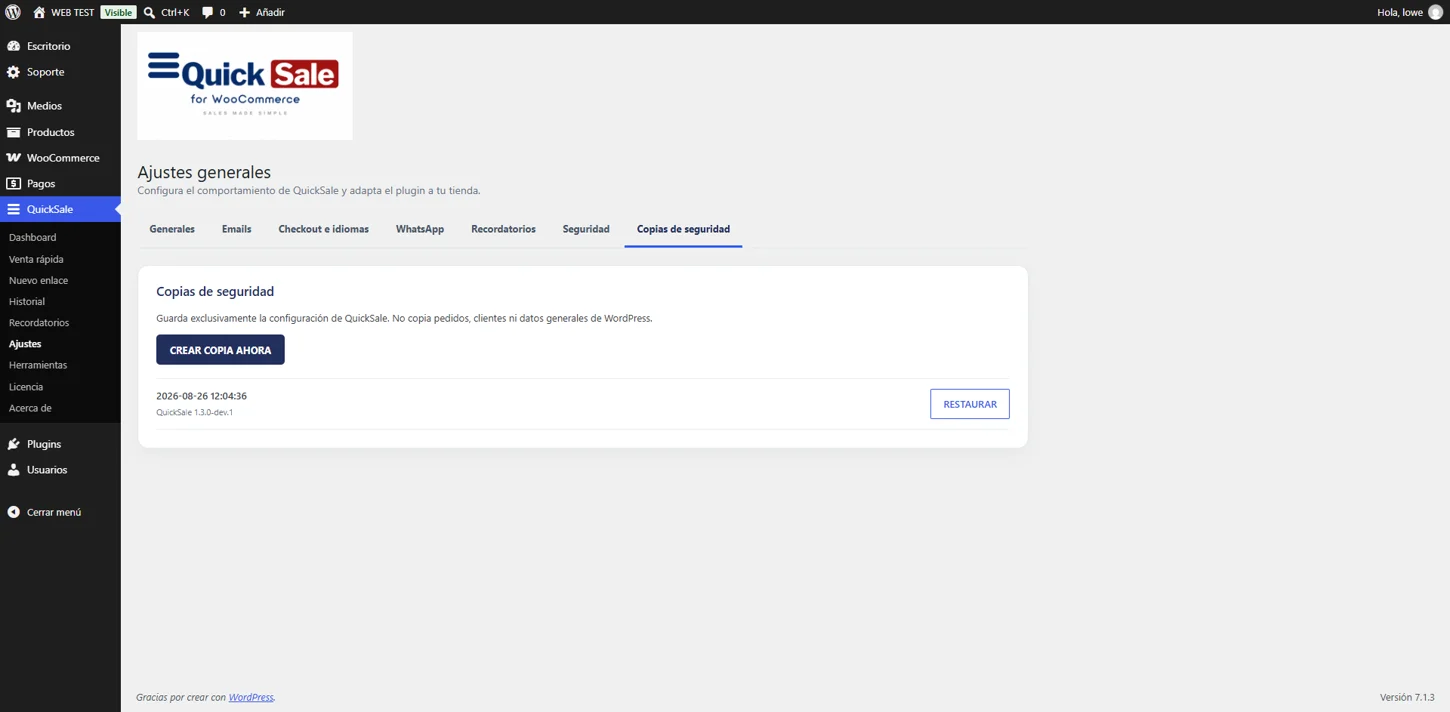
The QuickSale menu provides Dashboard, New payment link, Quick Sale, History, Reminders, Settings, License and Tools. Menu labels may vary slightly with translations.
04
Configure checkout and languages
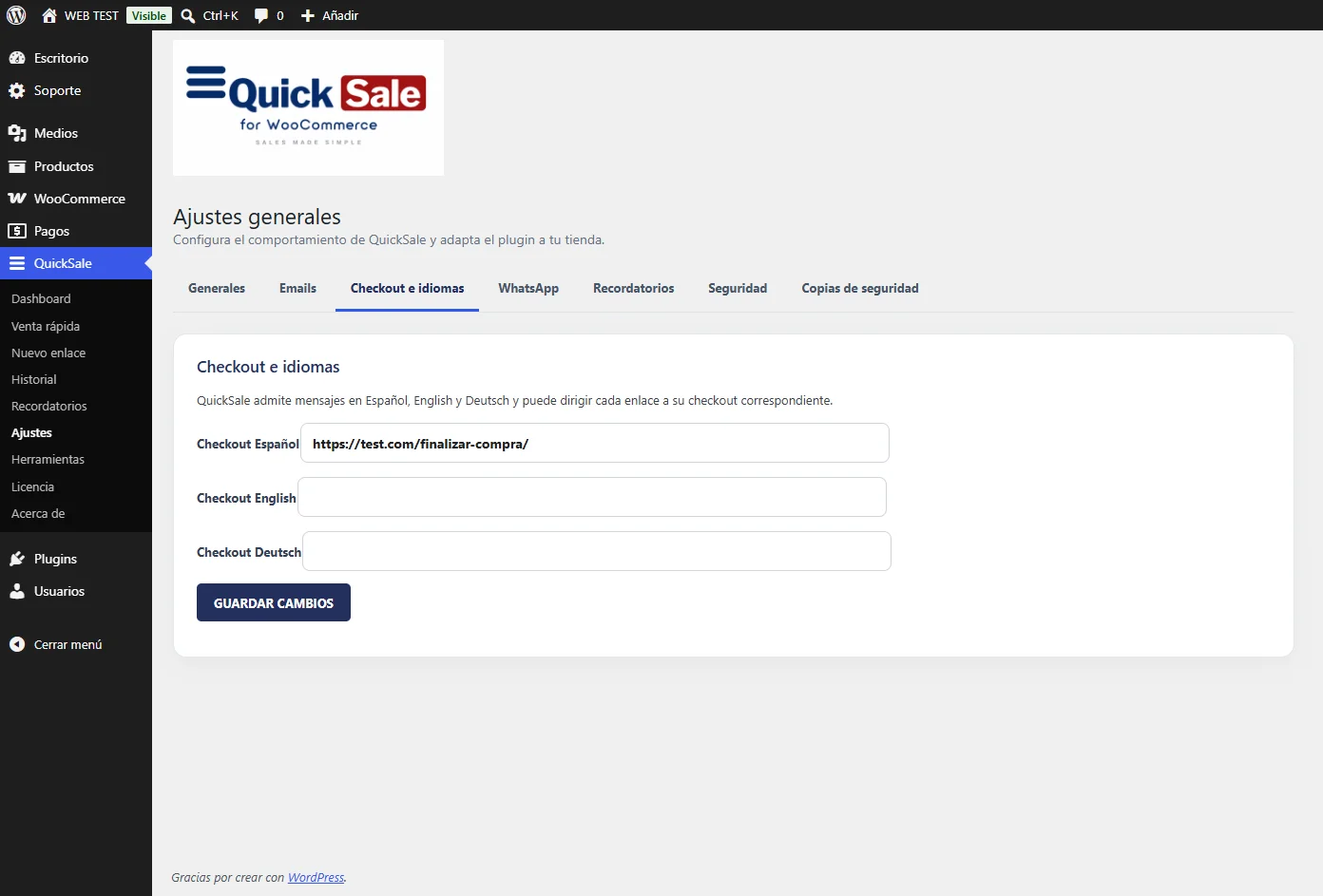
Open QuickSale → Settings → Checkout & languages. Review the checkout URLs for Español, English and Deutsch. Save changes and test a checkout in the selected language.
Real QuickSale screenshot
05
Test safely
Generate a test payment link and complete a controlled WooCommerce order. Confirm the payment status and check the QuickSale activity timeline.